Managing your card show
Everything your dashboard does, and the handful of rules that are not obvious from looking at it.
Finding your shows
Everything you have listed with us lives in one place.
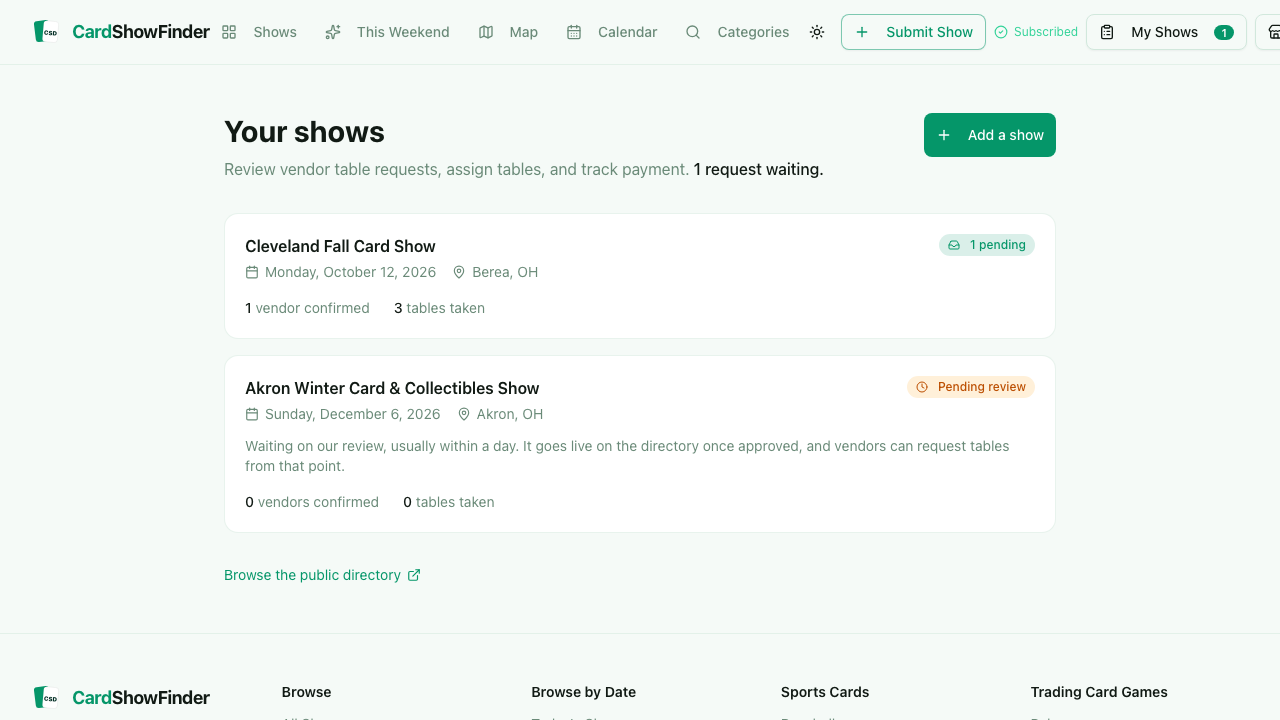
Your shows appear at /organizer as soon as the listing is linked to your account. That happens on its own when you sign up with the address you submitted the show with.
A show with no badge is live. Pending review means our team has not looked at it yet, usually within a day. A green badge counts dealers waiting on an answer from you.
A show only appears here once it is linked to your account. If you submitted it with a different email address, ask us to connect it from the show page.
Taking table requests
Dealers can ask for a table straight from your show page.
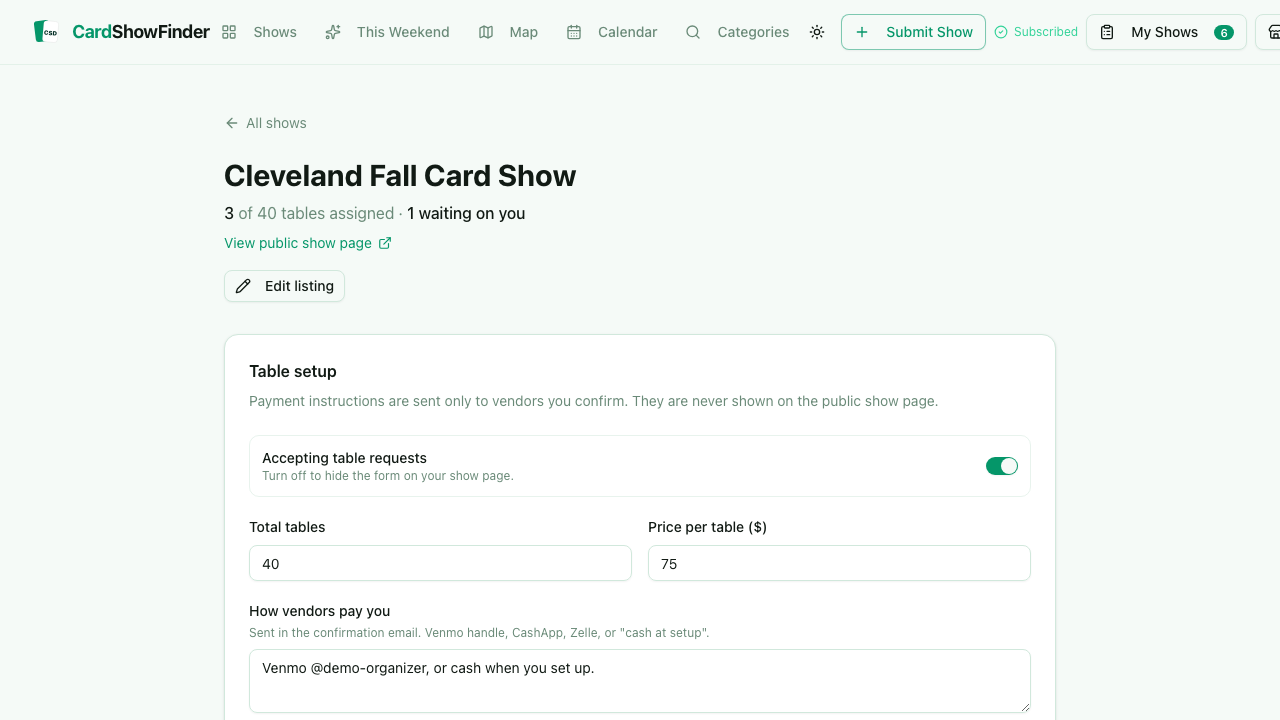
Open your show and set how many tables you have and what they cost. Neither is required, but the numbers let collectors and dealers see how much room is left.
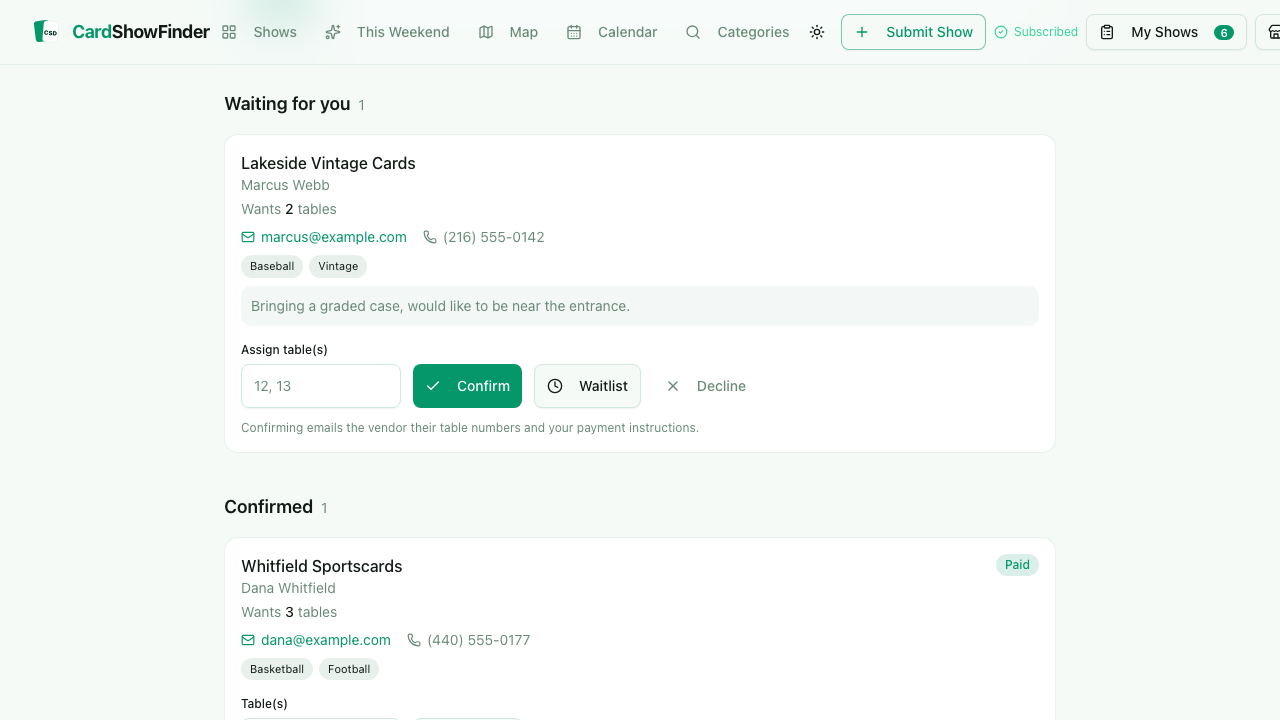
Each request emails you. You can confirm, waitlist or decline it, assign table numbers, and mark who has paid.
The request form is hidden on your public show page until Accepting table requests is switched on. Your payment instructions are never shown publicly. They are sent to a dealer only at the moment you confirm their table.
Fixing your listing
Change anything yourself, any time.
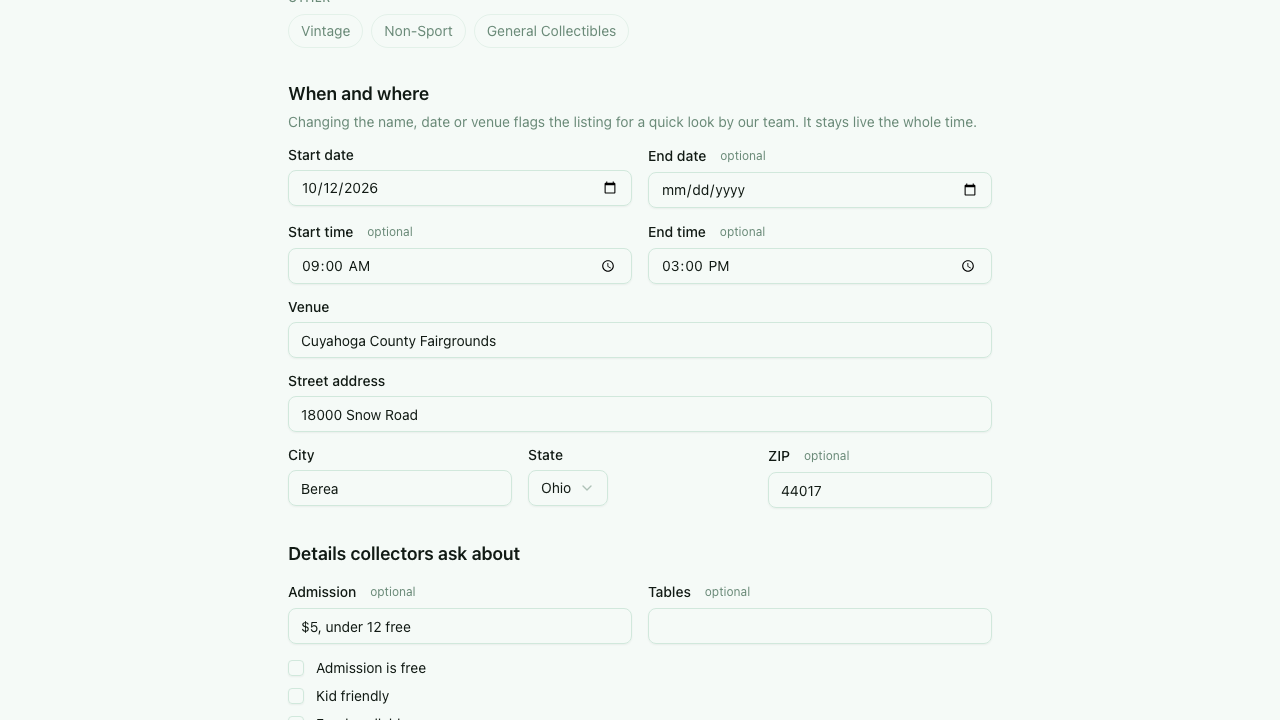
Times, description, admission, parking, contact details and the flyer are all yours to change. Save and it is live.
Your show link never changes, so anything you have already printed or shared keeps working.
Changing the name, date or venue flags the listing for a quick look by our team, but it stays live the whole time. If a show of yours was not published, fix the details here and save: that puts it straight back in the review queue.
Cancelling
If it is not happening, take it down.
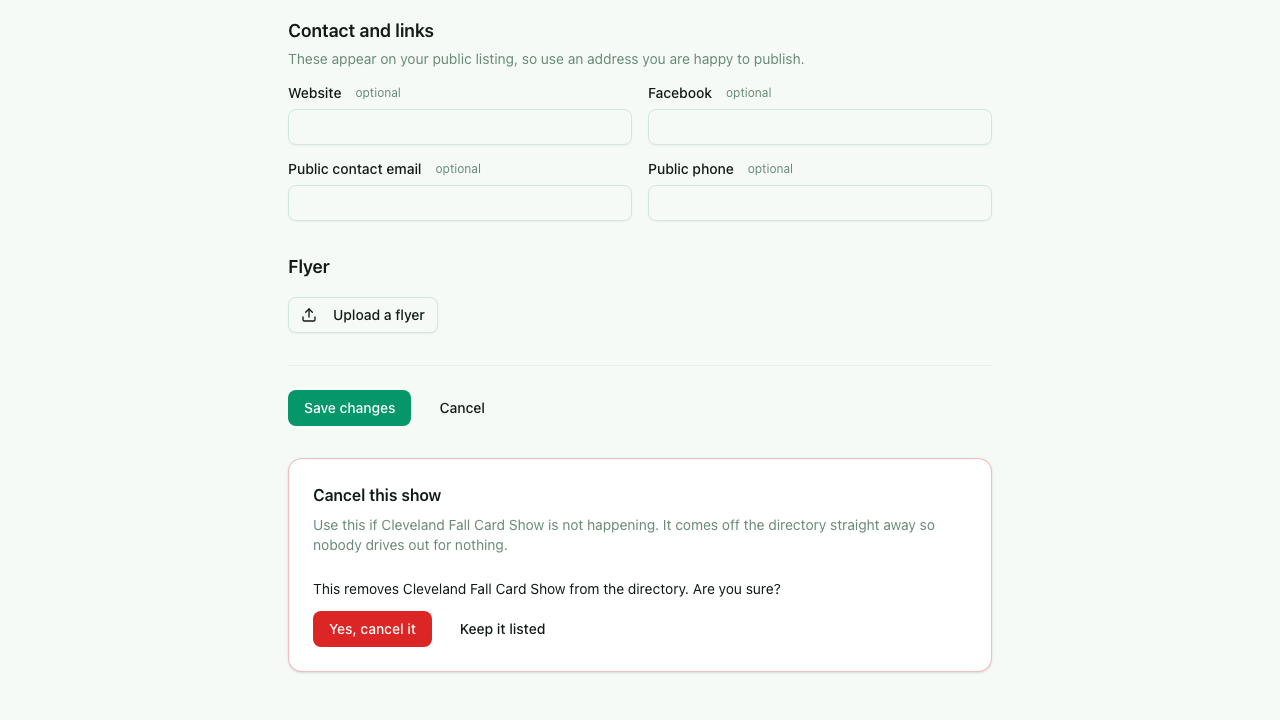
Cancelling removes the show from search, the map, the calendar and the weekly email, so nobody drives out to a locked building.
Anyone you have confirmed for a table is told straight away.
Cancelling is not self-serve to undo yet. Reply to any email from us and we will put it back.
Common questions
How do I get access to manage my card show listing?
Create a free account using the same email address you submitted the show with. The listing links to your account automatically, and appears at /organizer. If you used a different address, open your show page and use the Is this your show link to ask us to connect it.
Why can nobody request a table at my show?
Two things have to be true. The show must be linked to your account, and Accepting table requests must be switched on in Table setup. Until both are true the request form is hidden on your public show page.
Will my show come offline while an edit is reviewed?
No. Edits go live straight away. Changing the name, date or venue flags the listing for a quick look by our team, but it stays listed the entire time and its link never changes.
My show was not published. Can I fix it?
Yes. Open the listing in your dashboard, correct whatever the rejection email mentioned, and save. Saving puts it back into the review queue automatically.
Do you take a cut of my table fees?
No. Payment is arranged directly between you and the dealer. We pass on the payment instructions you write when you confirm someone, and we never see or hold the money.
Is listing a card show free?
Yes. Submitting a show, managing the listing and taking table requests are all free.
Not listed with us yet?
Adding a show is free and takes a couple of minutes.
List your show